> For the complete documentation index, see [llms.txt](https://docs.nected.ai/nected-docs/llms.txt). Markdown versions of documentation pages are available by appending `.md` to page URLs; this page is available as [Markdown](https://docs.nected.ai/nected-docs/self-hosting/additional-configuration/additional-integrations/google-sheet.md).
# Google Sheet
This guide walks you through setting up a **Google Cloud project**, **OAuth 2.0** and **API Key** credentials, and configuring your **on-premise Nected** deployment so users can connect Google Sheets as an integration. The Gsheet connector is used in Nected for reading and writing spreadsheets.
### Prerequisites
* Access to your on-premise Nected deployment (Helm values and cluster)
* A **Google account** with access to [Google Cloud Console](https://console.cloud.google.com)
* Your Nected UI base URL for the OAuth redirect URI
* **Requires Garuda.** Enable the Garuda service before adding Gsheet. See [How to enable integrations](/nected-docs/self-hosting/additional-configuration/additional-integrations.md#how-to-enable-integrations) in the Overview.
### Step 1: Create a Google Cloud Project
1. Go to [Google Cloud Console](https://console.cloud.google.com).
2. Sign in with your Google account.
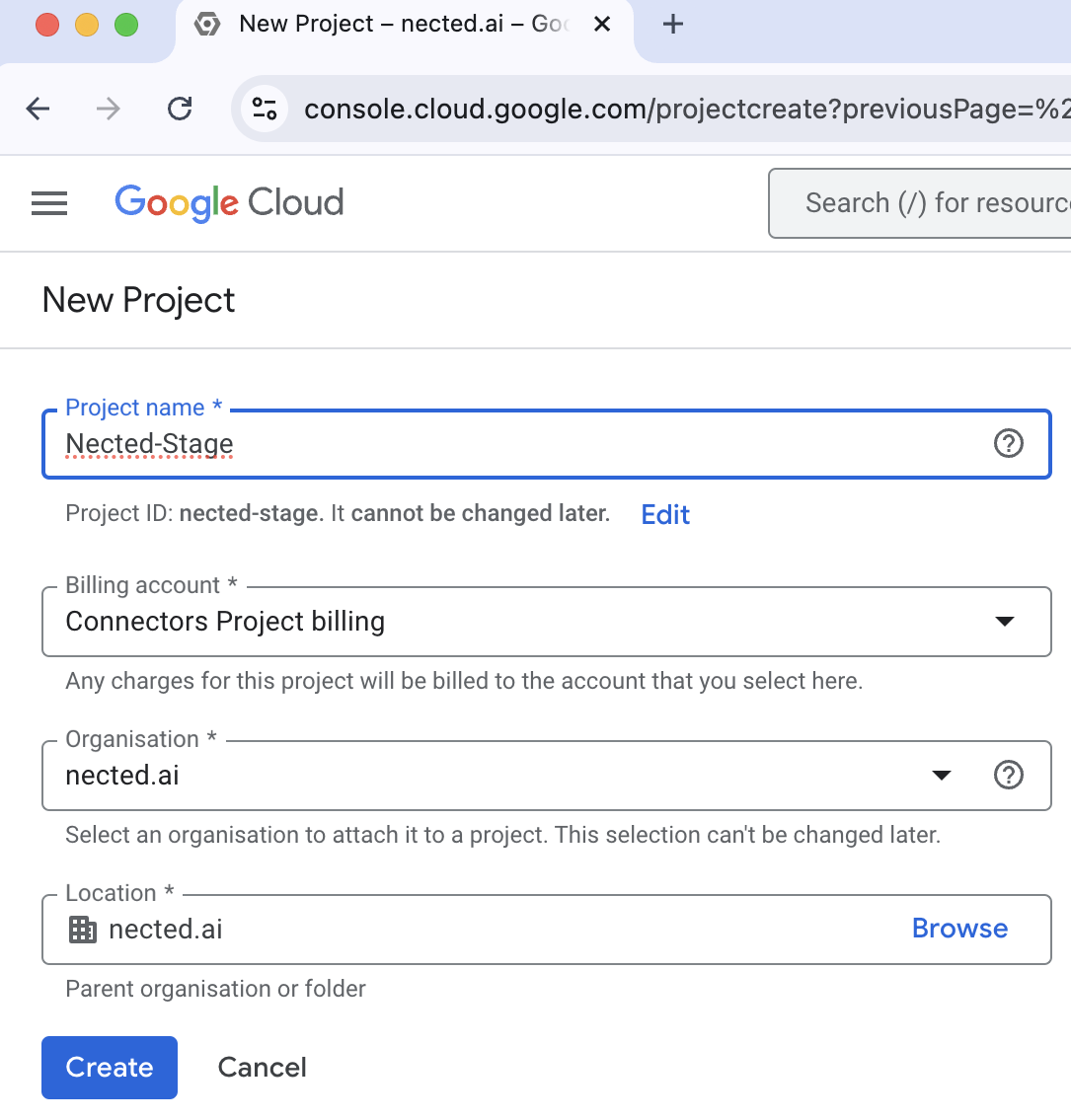
3. Create a new project (or select an existing one):
* Click the **project selector** at the top, then **New Project**.
* Enter a **Project name** (e.g. `Nected` or `Nected Gsheet`).
* Click **Create**.
### Step 2: Configure OAuth Consent Screen (Branding)
1. In the Google Cloud Console, open **APIs & Services** → **OAuth consent screen**.
2. Choose **External** (or **Internal** if only your organization will use the integration) and click **Create**.
3. Fill in the **App information**:
* **App name** (e.g. `Nected`)
* **User support email**
* **Developer contact email**
4. Under **Scopes**, add the scopes required for Google Sheets (or add them when configuring OAuth credentials; see Step 3).
5. Save the consent screen. If you use **External** and go to production, you may need to submit the app for verification depending on scope and usage.
### Step 3: Create OAuth 2.0 Credentials
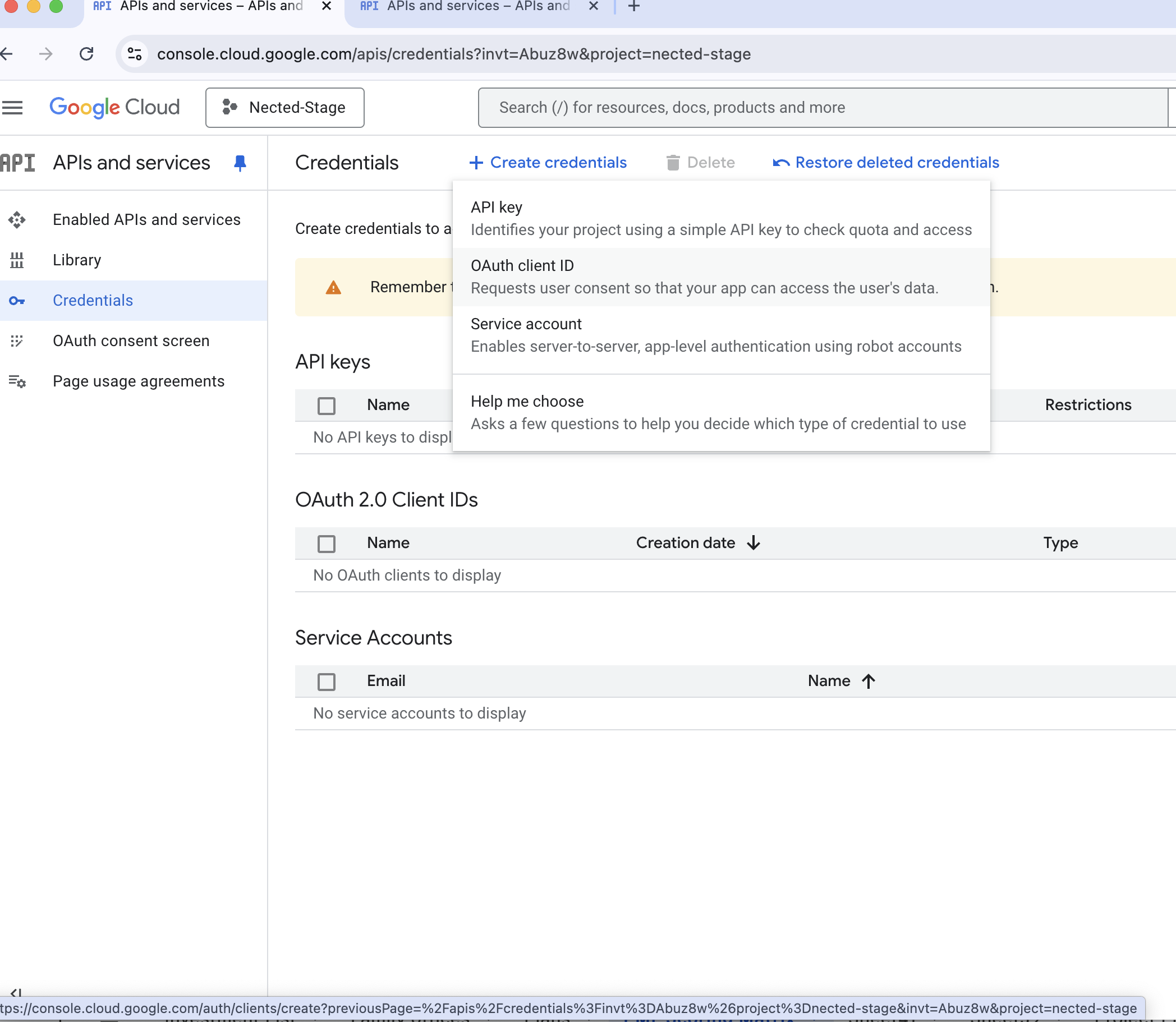
1. Go to **APIs & Services** → **Credentials**.
2. Click **Create Credentials** → **OAuth client ID**.
3. If prompted, complete the **OAuth consent screen** configuration.
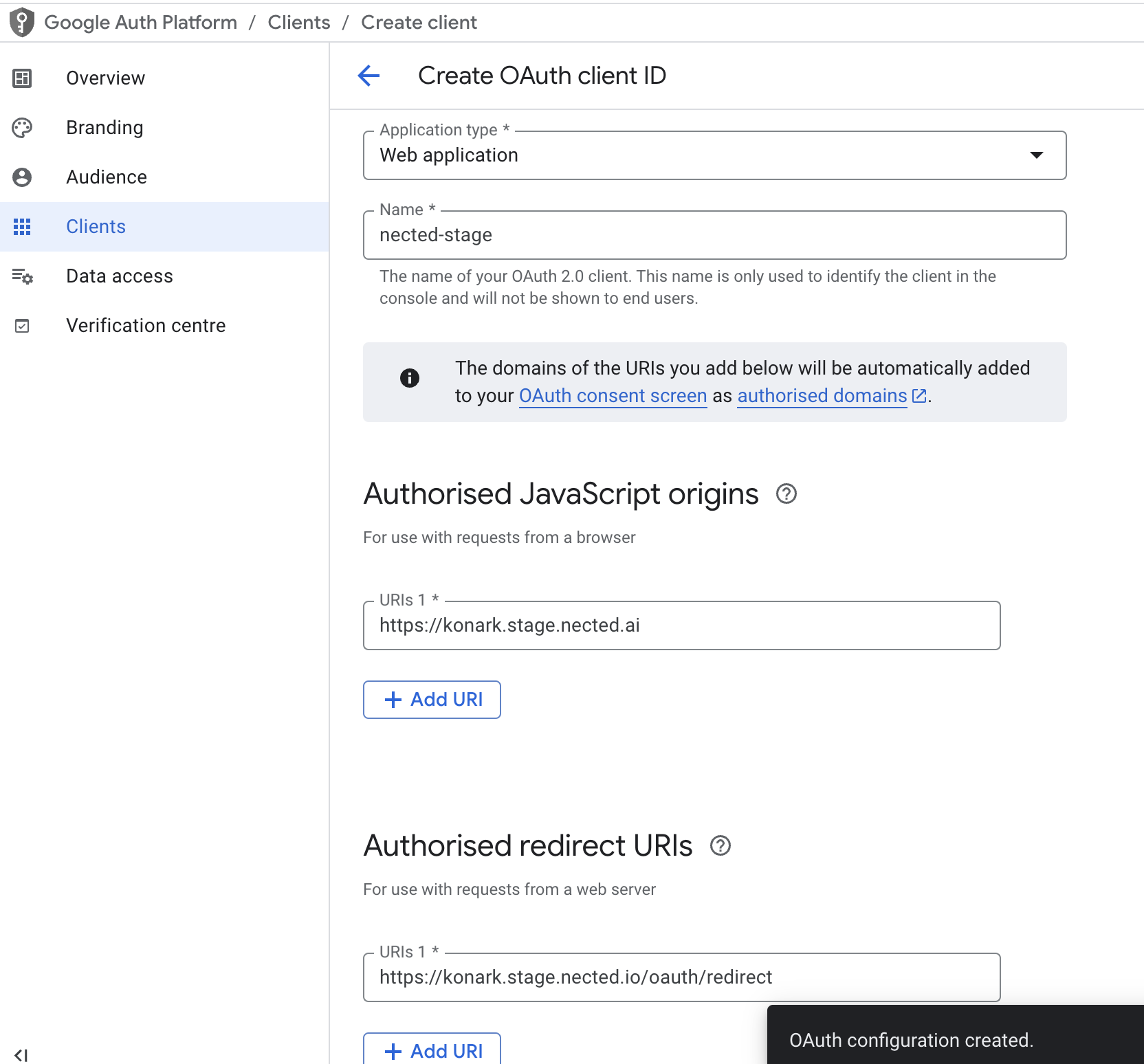
4. For **Application type**, select **Web application**.
5. Give the client a **Name** (e.g. `Nected Gsheet`).
6. Under **Authorized redirect URIs**, add your Nected OAuth redirect URI:
* **Format:** `https:///auth/redirect` (or the redirect path your Nected deployment uses for Google OAuth; confirm in your Nected docs or existing config).
* Example: `https://nected.yourcompany.com/auth/redirect`
7. Click **Create**.
8. Copy the **Client ID** and **Client Secret** and store them securely. You will use them in `nected-values.yaml`.
### Step 4: Create API Key Credential
The Gsheet connector also requires an **API Key** in addition to OAuth (used for Sheets API access).
1. In **APIs & Services** → **Credentials**, click **Create Credentials** → **API key**.
2. Copy the generated **API key** and store it securely.
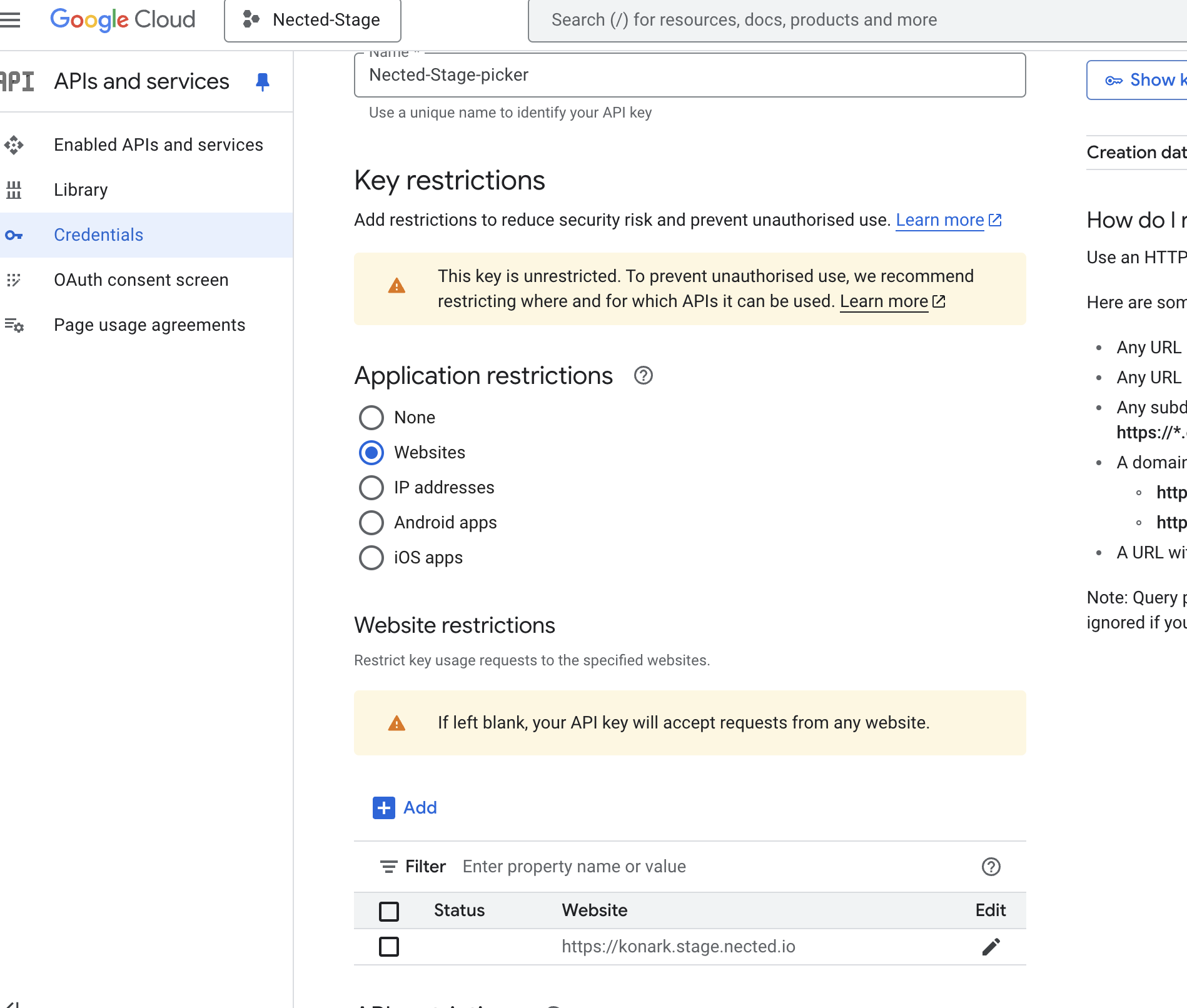
3. (Recommended) Restrict the key:
* Click **Edit API key** (or open the key from Credentials).
* Under **API restrictions**, restrict to **Google Sheets API** (and **Google Drive API** if needed).
* Under **Application restrictions**, you can restrict by IP or HTTP referrer if your Nected deployment has fixed egress IPs or domains.
You will add this API key to `CREDENTIAL_CONFIG_MAP` in the next step.
### Step 5: Enable Required APIs (If Not Already Enabled)
1. Go to **APIs & Services** → **Library**.
2. Search for **Google Sheets API** and **Google Drive API** and ensure both are **Enabled** for your project.
### Step 6: Update `nected-values.yaml` — CREDENTIAL\_CONFIG\_MAP
In `nected-values.yaml`, **CREDENTIAL\_CONFIG\_MAP** and **SYNC\_PLUGINS** are set under the nalanda section (envVars). They are not present in the file by default—copy the default values from the Overview and append your integration entries. Both must be single-line (no newlines); do not remove existing values.
1. Open your **`nected-values.yaml`** file.
2. Under the nalanda **envVars** section, locate or add **`CREDENTIAL_CONFIG_MAP`**.
3. `CREDENTIAL_CONFIG_MAP` must be a **single-line JSON** string (no newlines or pretty-printing). Add the Gsheet entry to the existing JSON object; do not remove other integrations.
**Gsheet config to add** (merge into the existing `CREDENTIAL_CONFIG_MAP` value). Required fields: `clientId`, `clientSecret`, `API_KEY`(and other values like `scopes`, in case required).
**Single-line example** (replace placeholders and merge with any existing integrations):
```yaml
nalanda:
envVars:
CREDENTIAL_CONFIG_MAP: '{"gsheet":{"clientId":"<>","clientSecret":"<>","APIKey":"<>"},"slack":{...}}'
```
* Replace **`<>`** with the OAuth 2.0 Client ID from Step 3.
* Replace **`<>`** with the OAuth 2.0 Client Secret from Step 3.
* Replace **`<>`** with the API Key from Step 4.
* If you already have other integrations (e.g. `slack`, `msexcel`), keep them in the same object; only **append** the `gsheet` key.
### Step 7: Update `nected-values.yaml` — SYNC\_PLUGINS
1. In the same **`nected-values.yaml`**, under the nalanda **envVars** section, locate or add **`SYNC_PLUGINS`**.
2. `SYNC_PLUGINS` is a **single-line** comma-separated list. **Append** `gsheet` to the existing list; do not remove existing plugins. For example:
```yaml
nalanda:
envVars:
SYNC_PLUGINS: mysql,mongodb,postgres,sqlserver,redshift,oracle,snowflake,restAPI,anthropic,googleai,openai,vertex,sagemaker,gsheet
```
Use your current plugin list and add `gsheet` at the end (or after the last plugin you use).
### Step 8: Apply Changes with Helm
1. (Optional) Update the Helm repo if you want the latest chart:
```bash
helm repo update nected
```
2. Upgrade the release with your values file:
```bash
helm upgrade -i nected nected/nected -f nected-values.yaml
```
3. If the Gsheet integration does not appear under **Integrations** in the Nected UI:
* Restart Nalanda: `kubectl rollout restart deploy nected-nalanda`
* Optionally run plugin sync from inside the Nalanda pod:\
`kubectl exec -it <> -- /bin/bash` then `./nalanda sync plugin`
### Summary Checklist
1. Create a project in [Google Cloud Console](https://console.cloud.google.com).
2. Configure **OAuth consent screen** (branding and app info).
3. Create **OAuth 2.0** credentials (Web application), add redirect URI, and save Client ID and Client Secret.
4. Create **API Key** credential and optionally restrict it to Sheets (and Drive) API.
5. Enable **Google Sheets API** and **Google Drive API** for the project.
6. In `nected-values.yaml`: add **gsheet** to **CREDENTIAL\_CONFIG\_MAP** (Nalanda envVars), add **gsheet** to **SYNC\_PLUGINS**, and **enable Garuda** with Redis envVars matching Nalanda.
7. Run **Helm upgrade** and, if needed, restart Nalanda or run plugin sync.
***
### Troubleshooting
* **Gsheet not in Integrations list:** Ensure **gsheet** is in `SYNC_PLUGINS`, Garuda is **enabled** with correct Redis settings, and run `./nalanda sync plugin` inside the Nalanda pod if needed.
* **OAuth or redirect errors:** Confirm the **Authorized redirect URI** in Google Cloud matches your Nected UI redirect URL exactly (e.g. `https:///auth/redirect`).
* **Redis / Garuda errors:** Ensure Garuda’s **REDIS\_**\* envVars match Nalanda’s and that Redis is reachable from the cluster. Use the same **REDIS\_HOST**, **REDIS\_PORT**, and credentials; **REDIS\_DB** can differ.
* **API key errors:** Ensure **Google Sheets API** (and **Google Drive API** if used) are enabled for the project and that the API key is not over-restricted (e.g. by referrer or IP if Nected runs in a different network).