> For the complete documentation index, see [llms.txt](https://docs.nected.ai/nected-docs/llms.txt). Markdown versions of documentation pages are available by appending `.md` to page URLs; this page is available as [Markdown](https://docs.nected.ai/nected-docs/integrations/integrations-libraries/microsoft-excel.md).
# Microsoft Excel
The **Microsoft Excel** connector lets you read from and write to Excel workbooks (OneDrive or SharePoint) inside **Nected workflows**. You can look up rows, insert new rows, or update existing rows, and use the results in the rest of your workflow.
{% hint style="info" %}
**Important:** Microsoft Excel is available **only in the Workflow editor**. It is not available in Rules (neither as a data source nor as an action). Use workflows when you need to integrate with Excel.
{% endhint %}
## Prerequisites
* Access to the Nected platform
* A **Microsoft account** (personal or work/school) with access to Excel workbooks in **OneDrive** or **SharePoint**
## Step 1: Connect Microsoft Excel
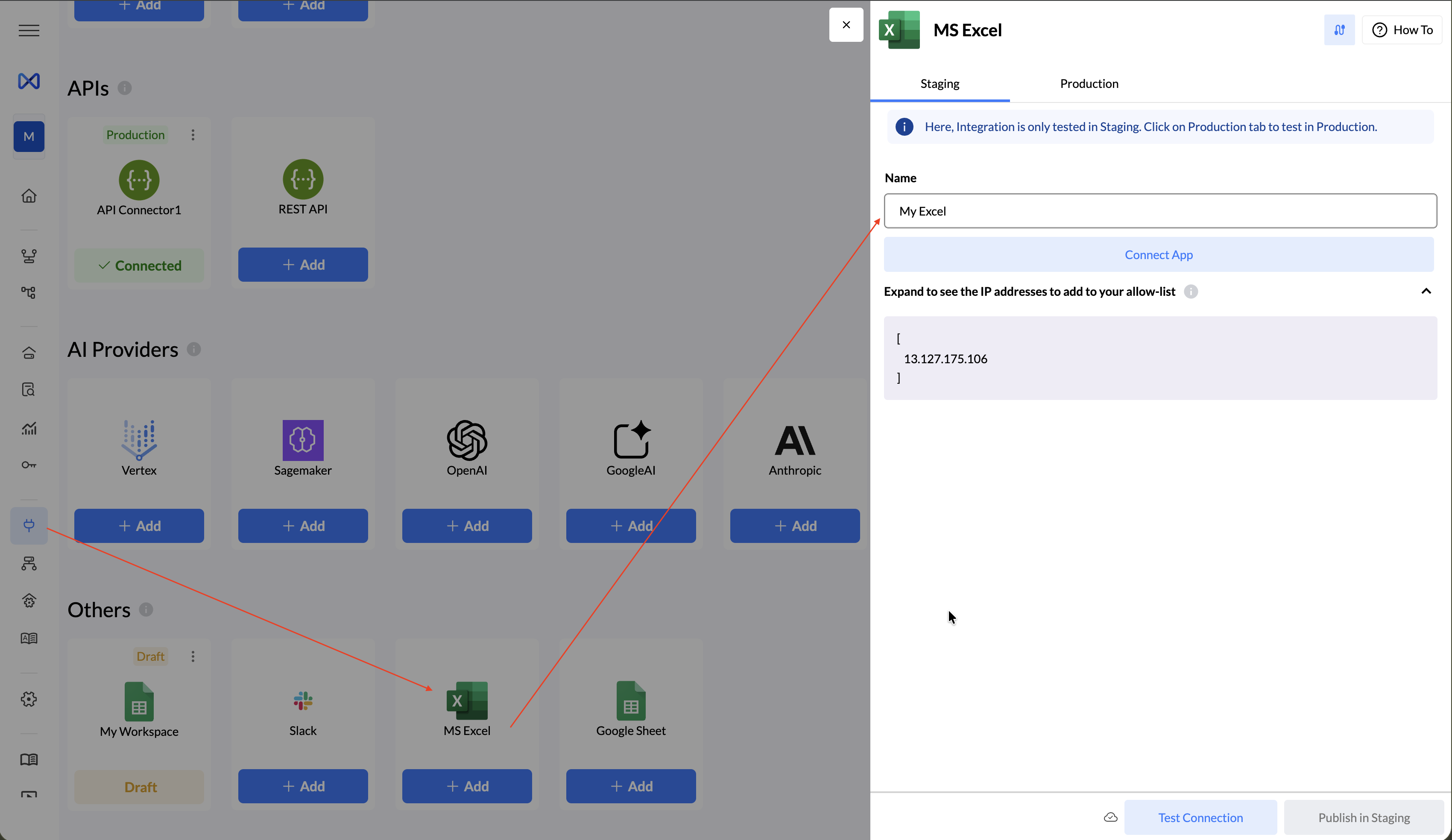
1. In the left navigation, go to **Integrations**.
2. Connect a new integration and choose **Sign in with Microsoft**.
3. Sign in with your Microsoft account and grant access to OneDrive/SharePoint and Excel when prompted.
4. After connecting, **test the connection** and publish to **Staging** or **Production** as needed.
You do not create a separate “data source” for Excel. Once the integration is connected, you use it by selecting an Excel **connector** when you add an Excel node in a workflow.
## Step 2: Add Excel in a Workflow
1. Open the **Workflow** editor and open or create a workflow.
2. On the canvas, click the **"+"** to add a node.
3. From the node list, select **Microsoft Excel** (or **MS Excel**).
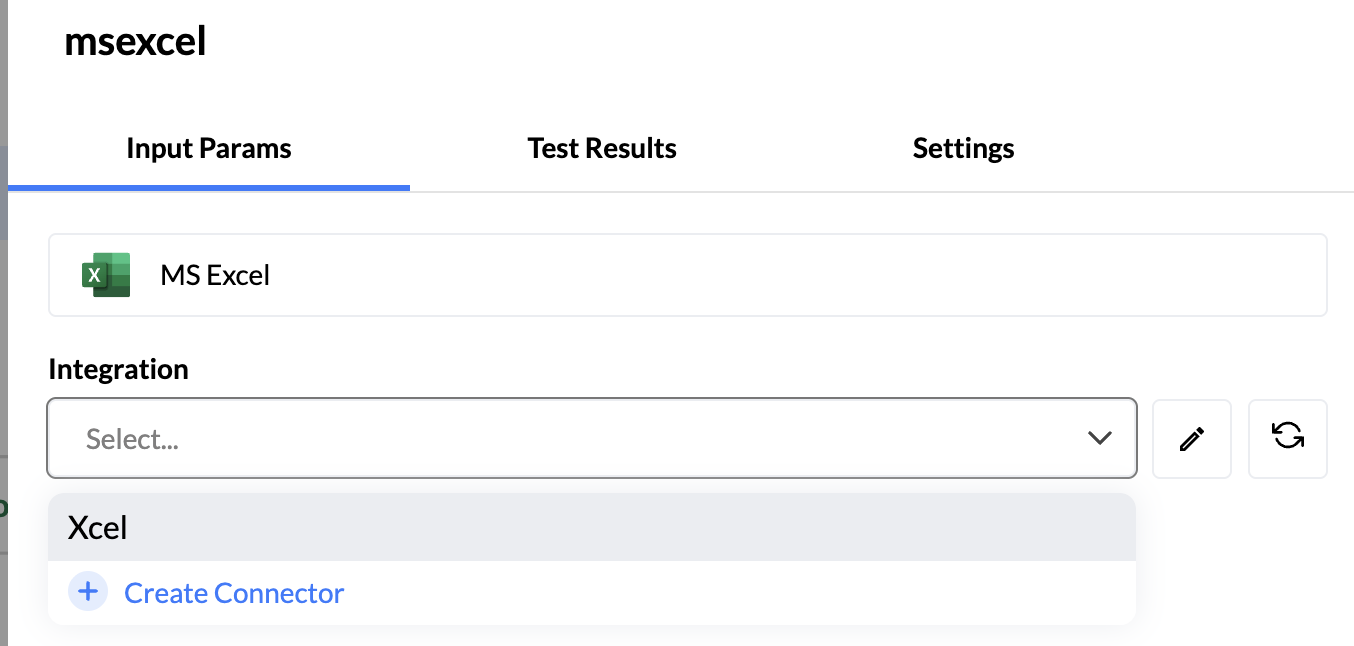
4. The Excel node configuration panel opens (e.g. titled **msexcel** or the name you give the node).
## Step 3: Configure the Excel Node
The configuration panel has three tabs: **Input Params**, **Test Results**, and **Settings**.
### Input Params
* Stay on the **Input Params** tab to configure the chosen action.
* Depending on the action, you will:
* Select the **workbook** and **worksheet** (e.g. via “Add sheet” or worksheet picker).
* For **Update Row(s)**: set which rows to update and the values to write.
* For **Insert Row(s)**: map workflow outputs (or previous node outputs) to the worksheet columns.
* For **Look-up**: define **conditions** (e.g. column = value) so only matching rows are returned.
* Fill in any required fields and save.
#### Integration
In **Integration**, choose the Excel connector you want to use from the dropdown.
{% hint style="info" %}
* Use the **refresh** icon to reload the list if you just created a connector.
* Use the **pencil** icon to edit the selected connector’s settings.
{% endhint %}
{% hint style="warning" %}
If you see a **red warning icon** next to the integration, the connector may be misconfigured or disconnected. Open the integration in the Integrations page, fix or re-authenticate, then come back and refresh.
{% endhint %}
#### Action
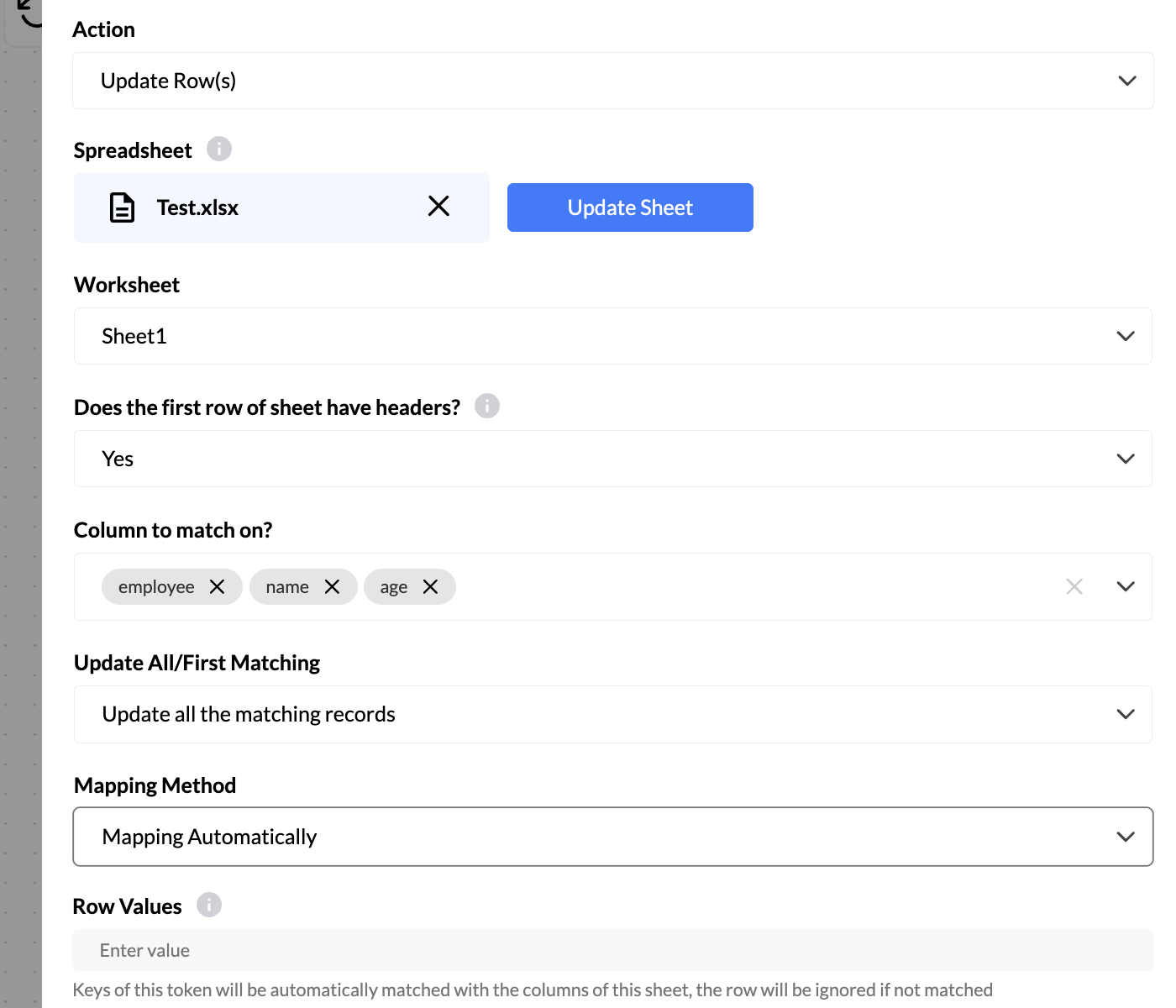
In **Action**, pick what this node should do. After selecting an action, the **Input Params** tab will show the fields you need to configure for that specific action.
| Action | Use when you want to |
| ----------------- | ------------------------------------------------------------------ |
| **Update Row(s)** | Change existing rows in a sheet (e.g. status, totals, flags). |
| **Insert Row(s)** | Append new rows (e.g. log entries, new records from the workflow). |
| **Look-up** | Read rows that match criteria and use them in subsequent nodes. |
#### **Update Row(s)**
**Update Row(s)** lets you update one or more rows in your Excel worksheet. After selecting this action:
1. You'll need to select the **workbook** and **worksheet** you want to update (click **Add sheet** to choose from your available Excel files).
2. Configure which rows to update (e.g. by specifying a key column and matching values, or by row number/range).
3. Map the values you want to write to specific columns in those rows. You can use values from previous workflow nodes or static values.
4. Fill in all the required details in the **Input Params** tab, then test and save.
#### **Insert Row(s)**
**Insert Row(s)** lets you insert values into one or more new rows in your Excel worksheet. After selecting this action:
1. Select the **workbook** and **worksheet** where you want to insert rows (click **Add sheet** to choose from your available Excel files).
2. Map the workflow data (from previous nodes or inputs) to the worksheet columns where you want to insert the new rows.
3. Configure how many rows to insert and the data for each row.
4. Fill in all the details accordingly in the **Input Params** tab, then test and save.
#### **Look-up**
**Look-up** finds one or multiple rows from your Excel worksheet based on conditions you define. After selecting this action:
1. Select the **workbook** and **worksheet** you want to search (click **Add sheet** to choose from your available Excel files).
2. Write **conditions** to filter rows (e.g. `Column Name = Value`, `Status = "Active"`, etc.). You can use values from previous workflow nodes in your conditions.
3. The matching rows will be returned and can be used in subsequent nodes in your workflow.
4. Configure the conditions in the **Input Params** tab, test to verify the correct rows are returned, then save.
#### Test Results
* Use the **Test Results** tab to run the node with sample or live data.
* Check that the action runs successfully and that returned or updated data matches what you expect.
#### Settings
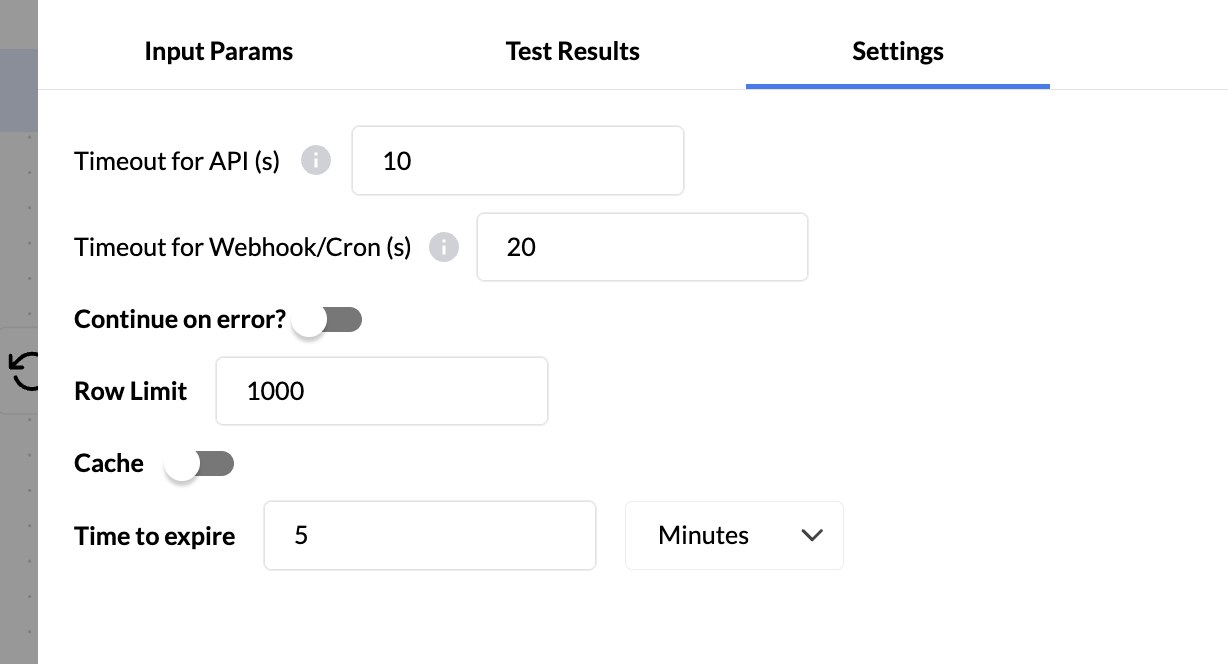
The **Settings** tab lets you control timeouts, error behavior, row limits, and caching for the Excel node:
| Setting | Description |
| -------------------------------- | -------------------------------------------------------------------------------------------------------------------------------------- |
| **Timeout for API (s)** | Maximum time in seconds for the Excel API call to complete (e.g. default 10). Use the info icon next to the label for more details. |
| **Timeout for Webhook/Cron (s)** | Maximum time in seconds when the node is triggered by a webhook or cron (e.g. default 20). |
| **Continue on error?** | Toggle: when **on**, the workflow continues to the next node even if this Excel node fails; when **off**, the workflow stops on error. |
| **Row Limit** | Maximum number of rows to process or return (e.g. default 1000). Useful to avoid timeouts or large payloads. |
| **Cache** | Toggle: when **on**, results can be cached to improve performance for repeated look-ups. |
| **Time to expire** | When cache is enabled, how long cached data is valid. Set the number and unit (e.g. **5** **Minutes**) before the cache expires. |
***
### Troubleshooting
#### Red warning icon next to the integration
If a **red warning icon** appears next to the selected Excel connector in the node panel:
* The connector may be invalid, expired, or not fully configured.
* Go to **Integrations**, find the Excel connector, and check its status. Re-authenticate or fix the configuration if needed.
* Return to the workflow, click **refresh** in the Integration dropdown, and select the connector again.
#### Authentication errors
* Complete the full Microsoft sign-in and consent flow when connecting.
* In **Integrations**, confirm the Microsoft Excel integration is connected and published.
* If it still fails, remove Nected’s access in your Microsoft account (Security → Third-party access) and connect again.
* Use an account that has at least **Edit** permission on the target workbook.
#### Connector not in the list
* Click the **refresh** icon in the Integration dropdown.
* Confirm the connector exists and is saved under **Integrations**.
* Reload the page and try again.
#### Workbook or worksheet not found
* Ensure the Microsoft account used for the connector can **view or edit** the workbook and worksheet.
* If the file is in a shared OneDrive/SharePoint location, ensure it is shared with that account.
* Check that the workbook is not in Recycle bin or deleted.
#### Errors when inserting or updating rows
* Verify **data types** match (e.g. numbers vs text, date format).
* Ensure required columns and ranges are valid and the sheet is not protected where you are writing.
* Test with simple, static values first.
#### Look-up returns no or wrong rows
* Check that **conditions** use the correct column names and data types.
* Ensure the values you’re matching exist in the sheet and are formatted consistently (e.g. no extra spaces).
* If using values from previous nodes, confirm they are passed correctly and in the expected format.
### Conclusion
Microsoft Excel integration is designed to be used within the Workflow editor—Rules are not supported. To get started, simply connect your Excel integration, add an **Excel node** to your workflow, select the appropriate connector, choose an action (Update Row(s), Insert Row(s), or Look-up), and configure the necessary input parameters. Always use **Test Results** to confirm your setup works as intended before saving your workflow.
### Also Read:
Cover image
Set up MS Excel on Self-hosted
If you run Nected on-premise, use the on-premise guide to register an app in Microsoft Entra, set permissions and redirect URI, and add the msexcel config to your Helm values.